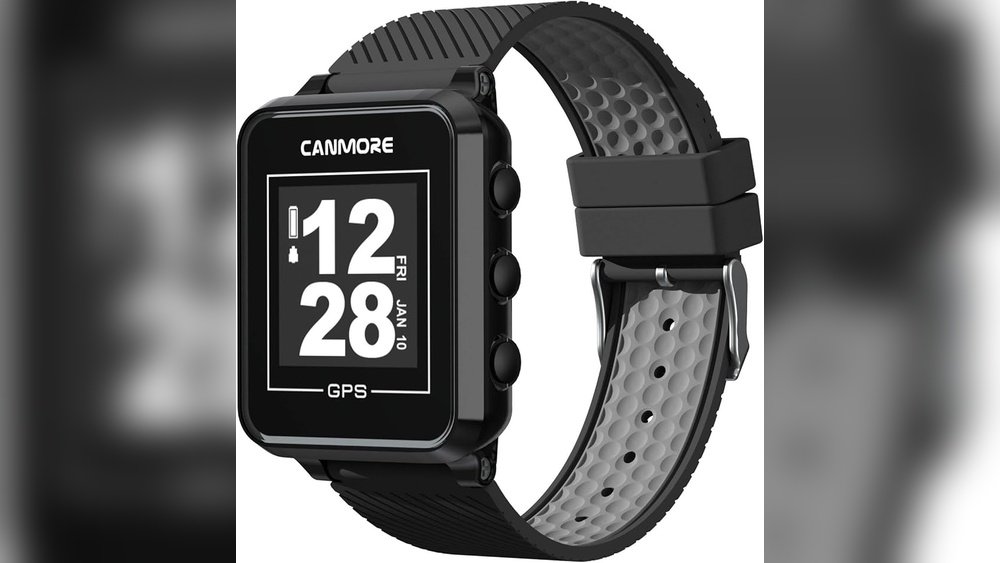
Is your GPS golf watch not showing the latest courses or giving you accurate distances? Keeping your device updated is key to getting the most out of every round.
But how do you update a GPS golf watch without hassle? In this guide, you’ll find simple, step-by-step instructions that anyone can follow. By the end, you’ll know exactly how to keep your watch running smoothly and stay ahead on the course.
Ready to improve your game with up-to-date data? Let’s get started.
Prepare Your Golf Watch
Preparing your golf watch before an update is very important. It helps the update go smoothly. A few simple steps can prevent problems. These steps ensure the watch works well after updating.
Start by checking the battery and device compatibility. These are key to a successful update. Taking time here saves frustration later.
Charge The Battery Fully
Make sure your golf watch battery is full. Updates need good power to finish properly. A low battery might stop the update or cause errors. Connect the watch to its charger and wait until it shows 100%. Do not skip this step.
Check Compatibility Requirements
Check your phone or computer meets the watch’s update needs. Some updates need specific software or operating systems. Visit the watch maker’s website for details. Confirm your device supports the update files. This avoids wasted time and failed updates.
Install Necessary Software
Installing the right software is the first step to update a GPS golf watch. This software helps your watch connect to your computer or phone. It also downloads the latest updates for your device. Without the correct software, your watch cannot receive important improvements or fixes.
Follow these simple steps to get the necessary software installed. This will make the update process smooth and easy.
Download The Official App
Start by finding the official app for your GPS golf watch. This app is usually available on the App Store or Google Play. You can also download it from the watch maker’s website.
Choose the right app that matches your watch model. Installing unofficial apps can cause problems. The official app will help you manage your watch settings and updates.
Set Up Your Account
Open the app and create a new account or log in if you already have one. This account keeps your watch data safe and synced.
Enter your details carefully. Use an email you check often. This helps in receiving update notifications and support.
Once your account is ready, connect your watch to the app. Follow the on-screen instructions for pairing your device. This connection allows the app to send updates directly to your watch.
Connect Watch To Device
Connecting your GPS golf watch to a device is the first step in updating it. This connection allows the watch to receive the latest software and course data. There are two common ways to connect your watch: via Bluetooth or USB. Both methods ensure your watch stays accurate and up to date.
Choose the method that fits your device and preferences. Follow simple steps to pair or connect and start the update process quickly.
Pair Via Bluetooth
Turn on Bluetooth on your smartphone or tablet. Go to the watch’s settings and enable Bluetooth. Find your watch name in the device list and select it. Wait for the devices to pair. Confirm any pairing codes shown on both devices. Once paired, open the watch’s app on your phone. Check for updates and follow the app instructions to update your watch. This method works well for wireless updates on the go.
Use Usb Connection
Locate the USB cable that came with your golf watch. Connect one end to the watch and the other to your computer. Make sure the watch is turned on. Open the watch’s update software on your computer. The software will detect your watch automatically. Follow the prompts to download and install updates. This method is reliable and fast for large updates or when Bluetooth is unavailable.

Download And Install Updates
Updating your GPS golf watch keeps it accurate and efficient. Updates add new features and fix bugs. This process ensures your device works smoothly on the course. Follow these steps to download and install updates with ease.
Check For Available Updates
Connect your golf watch to your computer or phone. Open the watch’s app or software. Look for the “Updates” section. The app will show if new updates are ready. If none appear, your watch is current.
Start The Update Process
Select the available update to begin. Follow on-screen instructions carefully. Keep your device connected during this time. Do not turn off or disconnect the watch. This could cause errors or incomplete updates.
Monitor Progress
A progress bar will display on the screen. Watch the update percentage as it rises. This shows how much data is installed. Wait until the update finishes fully. Your watch will restart or notify you when done.
Troubleshoot Common Issues
Updating a GPS golf watch can sometimes cause issues. These problems can stop the update or make the watch not work right. Knowing how to fix common problems saves time and frustration. The following tips help solve frequent update troubles easily.
Fix Connection Problems
Check the watch and phone or computer connection first. Make sure Bluetooth is on and both devices are close. Restart the watch and the phone or computer to refresh the connection. Try using a different USB cable or port if using a wired connection. Remove other Bluetooth devices that might interfere with the signal. Clear the Bluetooth cache on your phone to improve pairing. Confirm the watch’s battery is charged enough for updating.
Resolve Update Failures
Start by closing the update app and reopening it. Delete any partial downloads to avoid conflicts. Make sure the watch has enough storage space for the update. Use a stable internet connection to prevent interruptions. Restart your device to clear temporary errors. Check for app updates that may fix bugs. Try updating the watch firmware using the manufacturer’s website instead of the app. Follow on-screen instructions carefully during the update process.

Optimize Watch Performance
Optimizing your GPS golf watch boosts its accuracy and speed. It helps the watch run smoothly during your game. Small steps can improve battery life and data precision. Follow these tips to keep your watch working at its best.
Calibrate Gps Settings
Start by checking your GPS settings regularly. Make sure the watch uses the correct location mode. High accuracy mode offers better precision but uses more battery. Choose balanced mode for longer battery life.
Reset the GPS calibration if distances seem off. You can do this in the settings menu. Let the watch find your location in an open area. Avoid tall buildings or trees that block signals. This helps the watch lock the GPS faster and more accurately.
Manage Storage Space
Clear old data and unused apps from the watch. Full storage can slow down the system. Delete old golf courses and activity logs you no longer need. This frees up memory for new updates and features.
Regularly sync your watch with the app on your phone or computer. Syncing backs up your data and clears temporary files. This keeps the watch responsive and ready for your next round.
Frequently Asked Questions
How Do I Update My Gps Golf Watch Software?
To update your GPS golf watch, connect it to your computer or smartphone. Use the manufacturer’s app or website to download the latest software. Follow on-screen instructions to complete the update. Regular updates improve accuracy and add new features.
Can I Update A Gps Golf Watch Without A Computer?
Yes, many GPS golf watches support wireless updates via Bluetooth. Use the watch’s companion app on your smartphone. Ensure your phone has internet access and follow the app’s update prompts. This method is quick and convenient.
How Often Should I Update My Gps Golf Watch?
Update your GPS golf watch whenever a new firmware version is available. Check for updates monthly or before playing golf. Regular updates enhance GPS accuracy and provide the latest course data and features.
What If My Gps Golf Watch Update Fails?
If the update fails, restart your watch and device. Ensure a stable internet connection and sufficient battery life. Retry the update process. If issues persist, consult the manufacturer’s support or user manual for troubleshooting tips.
Conclusion
Updating your GPS golf watch keeps it accurate and reliable. Regular updates add new features and fix bugs. Connect your watch to Wi-Fi or a computer to start. Follow simple steps shown on the device or app screen. Keep your watch charged during the update process.
Updating takes only a few minutes but helps a lot. Stay ready for your next golf game with fresh data. Don’t skip updates to enjoy the best golf experience. Easy to do and worth the little effort.


